
Nitro PDF (2026) review
We’re not there yet, but mainly thanks to PDFs, we’re slowly making our way towards a paperless society. But how do you sign a document without actually touching a physical piece of paper? One solution is to use an online digital service like Nitro.
Available for Windows and Mac, there’s also a version of the PDF editor app for iPad, iPhone and iPod Touch. But how does the latest version measure up to the best PDF editor software we've used? We put it to the test.
Nitro PDF: Pricing & plans
- Two subscription plans for small business and enterprise
- Three-year license also available
You can check out Nitro by clicking here.
Nitro PDF is the core offering, available for individuals, small businesses, and enterprise depending on one of two plans you choose. Prices start at $15 or £11.50 each month, billed annually. However, a three-year license option is also available - Nitro PDF Classic is priced at $270 or £200.
Nitro Sign is the second option, designed for those who just need basic e-signature features, and that costs $10 or £7.50 each month.
Higher end tiers for PDF editing are also available but they’re more of a bespoke custom tailored option. These are known as Nitro Sign Plus, Nitro Sign Enterprise, and Nitro PDF Plus, but you’ll need to contact their sales team to get a bespoke custom tailored price for them.
- Pricing: 4/5
Nitro PDF: Interface & experience
- The page layout is clear and easy to navigate
- Each tool has a prominent area to click on to activate it
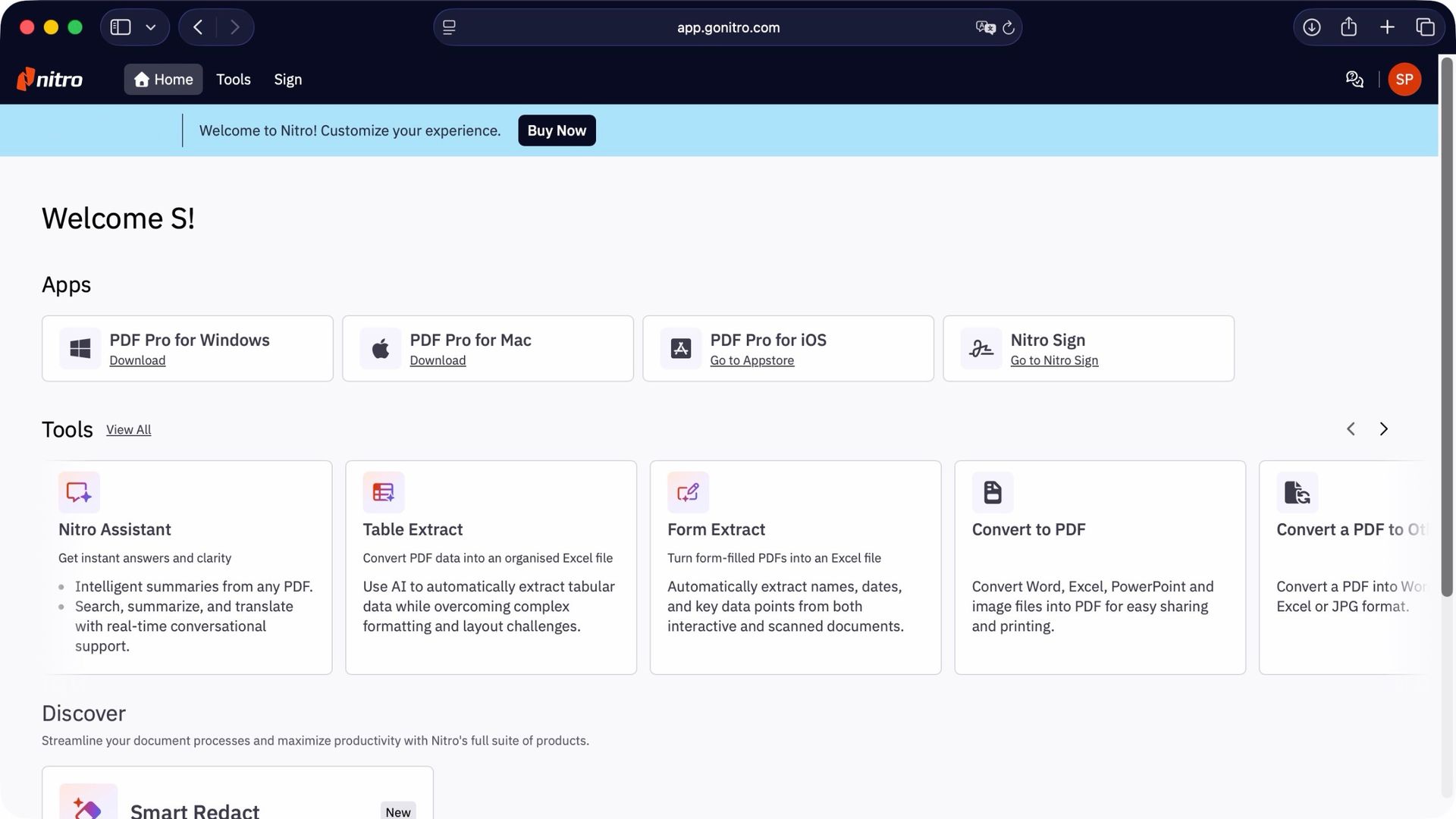
Having logged in (yes you do need to give Nitro your email address), you’ll be graced with the service’s dashboard. I was pleasantly surprised you can download software for Windows, macOS, and iOS, although you’re not given much information regarding its system requirements. I had to search online for it (it's here).
But interesting though this is, I’m more curious about the online service. Not only would this allow me to work with PDFs on any machine I care to log in from, but the web-based version always includes the latest available tools.
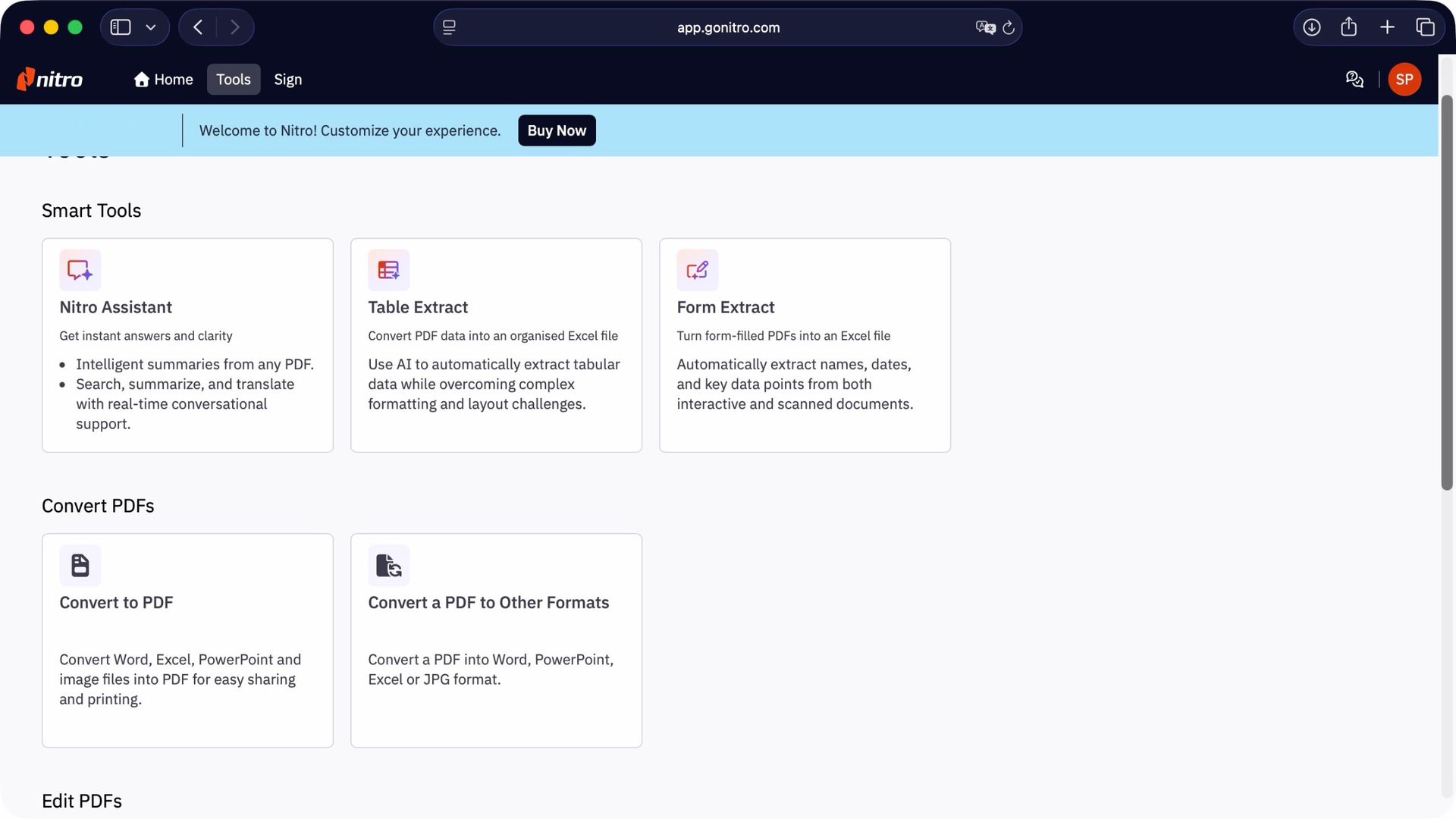
The web page is clean and simple. Beneath the links to download the various versions are all the available tools. You have “Smart Tools” where complex algorithms analyse the document for you.
This includes ‘Nitro Assistant’ which can summarise or even translate a PDF, and includes live conversations with an LLM. ‘Table Extract’ converts tabular data into an excel file, and ‘Form Extract’ does the same, but focuses on form data, ie, it extracts names, dates, addresses, and more from a PDF.
The ‘Convert PDFs’ category lets you turn any Microsoft Office document into a PDF, or a PDF into one of the three Microsoft Office formats, as well as turning it into a JPG. The last two on the list are what we were originally here for: signing PDFs and requesting others to do the same.
- Interface & experience: 4/5
Nitro PDF: Tools
- Relatively simple to use
- Interesting AI tools that work well and save time
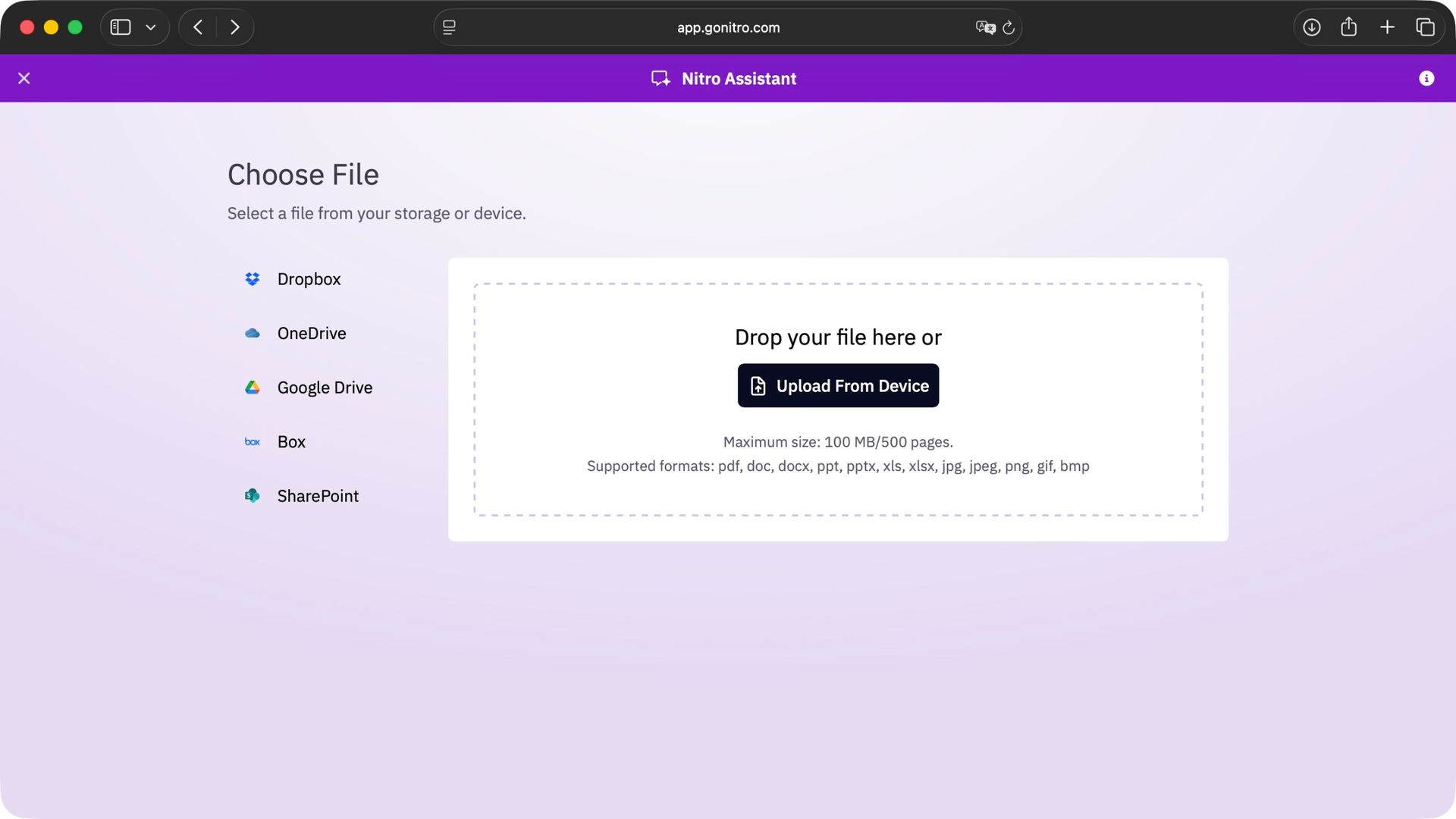
I do appreciate that not only can you upload a file from your computer simply by dragging it onto the right part of the page, but Nitro can link up to your online storage account, be it Dropbox, OneDrive, GoogleDrive, Box or SharePoint, giving you a lot of flexibility.
I thought I’d try the summarisation tool first, but it turns out, I didn’t need to do anything: the moment I uploaded a file to the ‘Nitro Assistant’, the algorithm started working right away and after a few seconds, provided me with a summary. Since I’d written the original, I could tell it actually did a decent job of finding the key points, and providing a suitable synopsis.
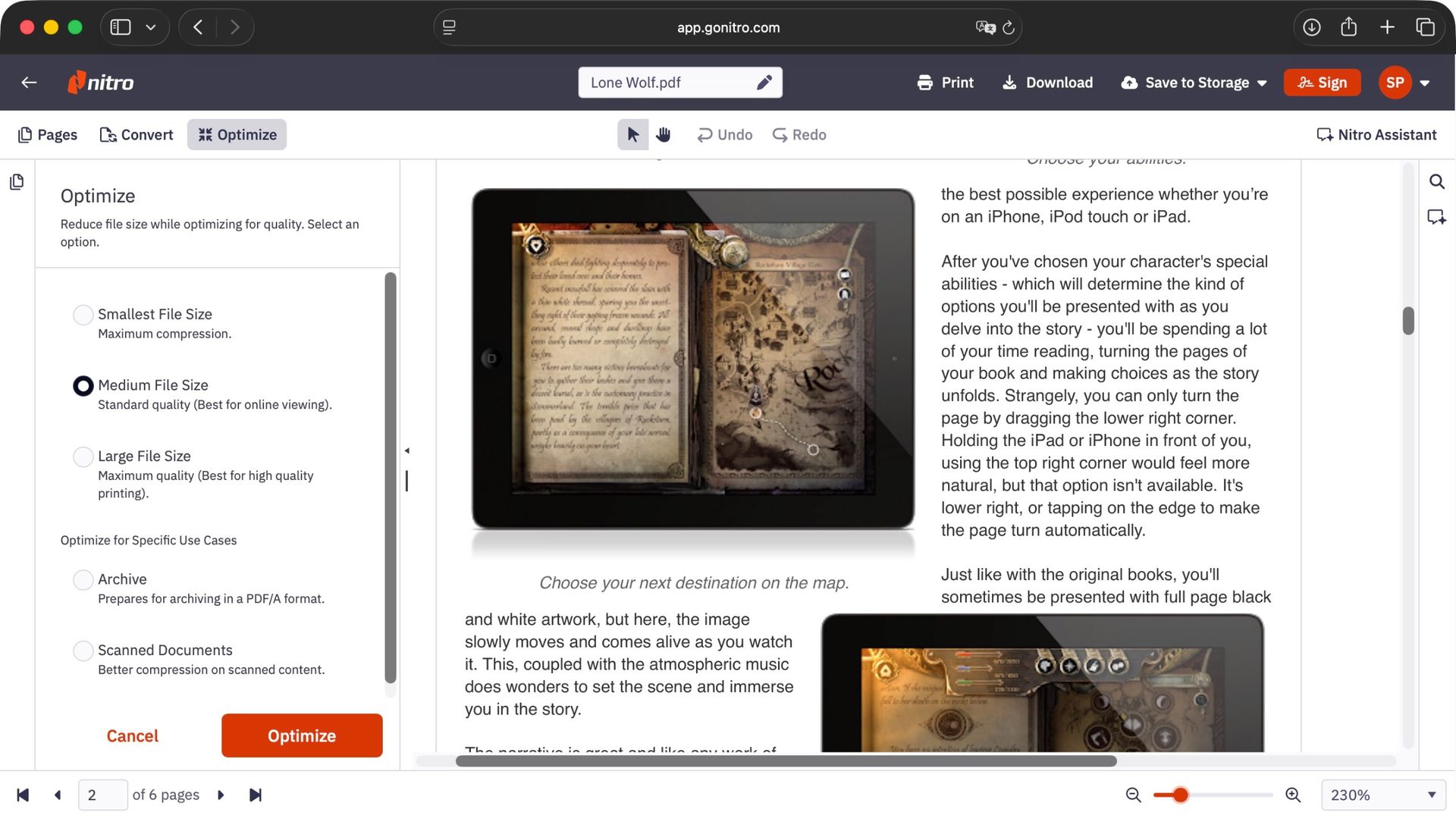
Interestingly, the ‘Convert’ and ‘Optimise’ options are there in ‘Assistant’, so there would be no need to select their respective separate tools in the Dashboard: you can do it all straight from ‘Assistant’.
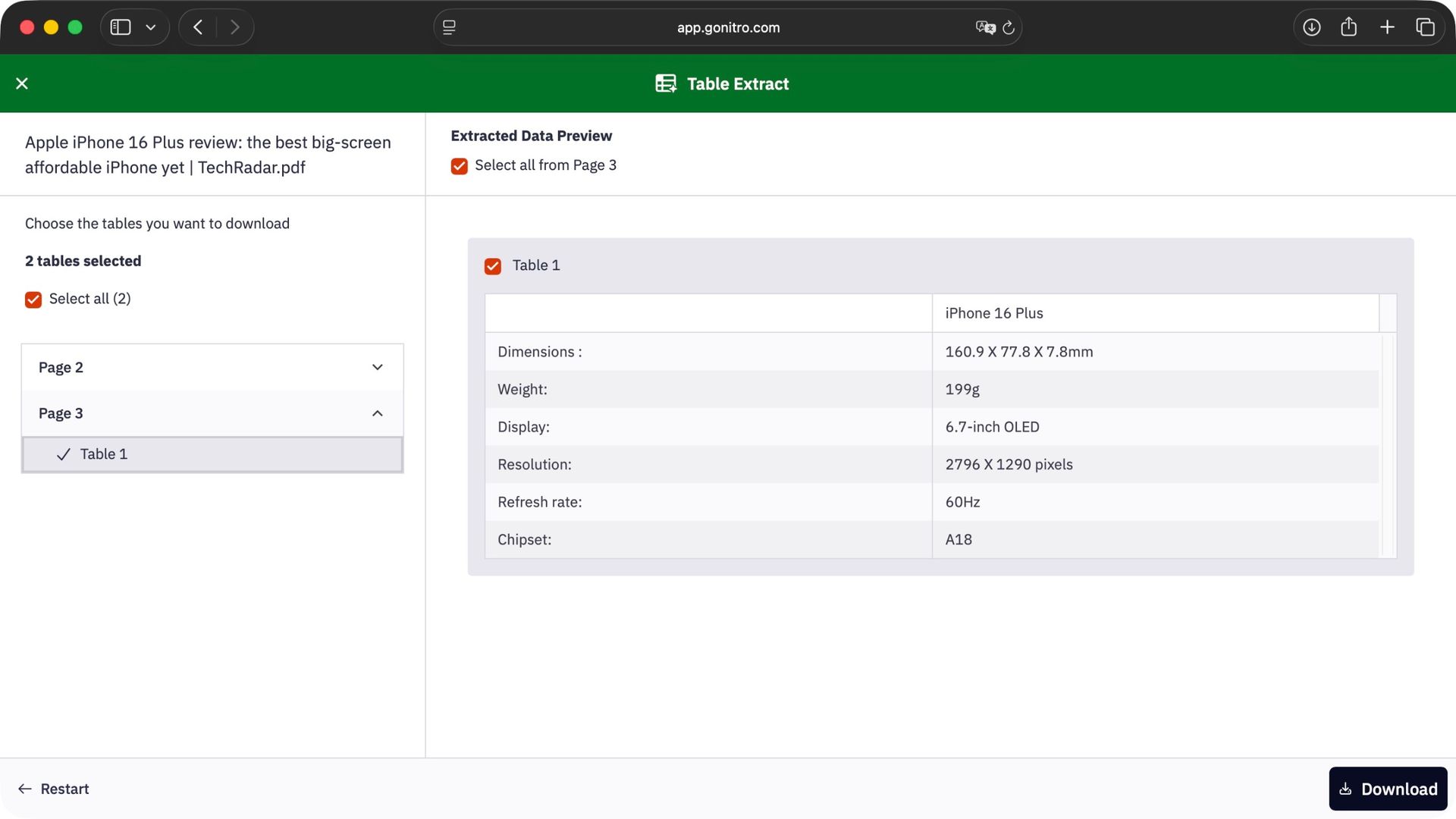
‘Table Extract’ was more interesting than I expected. I uploaded an article that contained copy as well as a couple of tables, and the algorithm was able to locate those, tell me which pages they were from, and grab the information from them.
Unfortunately it wasn’t perfect: a couple of cells were merged into one, it didn’t realise a table spanned two pages, and only gave me the data from the first. Given that there were only 2 rows on the second page, that wasn’t a major problem.
Just to be sure, I then tried the service with documents made up entirely of tables, spanning multiple pages. ‘Table Extract’ grabbed every single row each time. So when the PDF is obviously a table, the result is faultless, but when it’s interspersed with paragraphs and images, it could be a little tricky. As always, your mileage may vary.
Considering many similar services charge you credits to use what they call AI, the fact Nitro did all this without additional charge is a big plus for this service.
- Tools: 4/5
Nitro PDF: Signing
- Simple and straightforward to set up e-signature collection
- Nitro handles everything in the background for you
As is similar with other tools in Nitro’s arsenal, choosing one signing tool actually gives you direct access to the other. Whether you choose ‘Request Signatures’ or ‘Self Sign’, you’ll have access to both, making the interface once again needlessly complicated with redundant buttons.
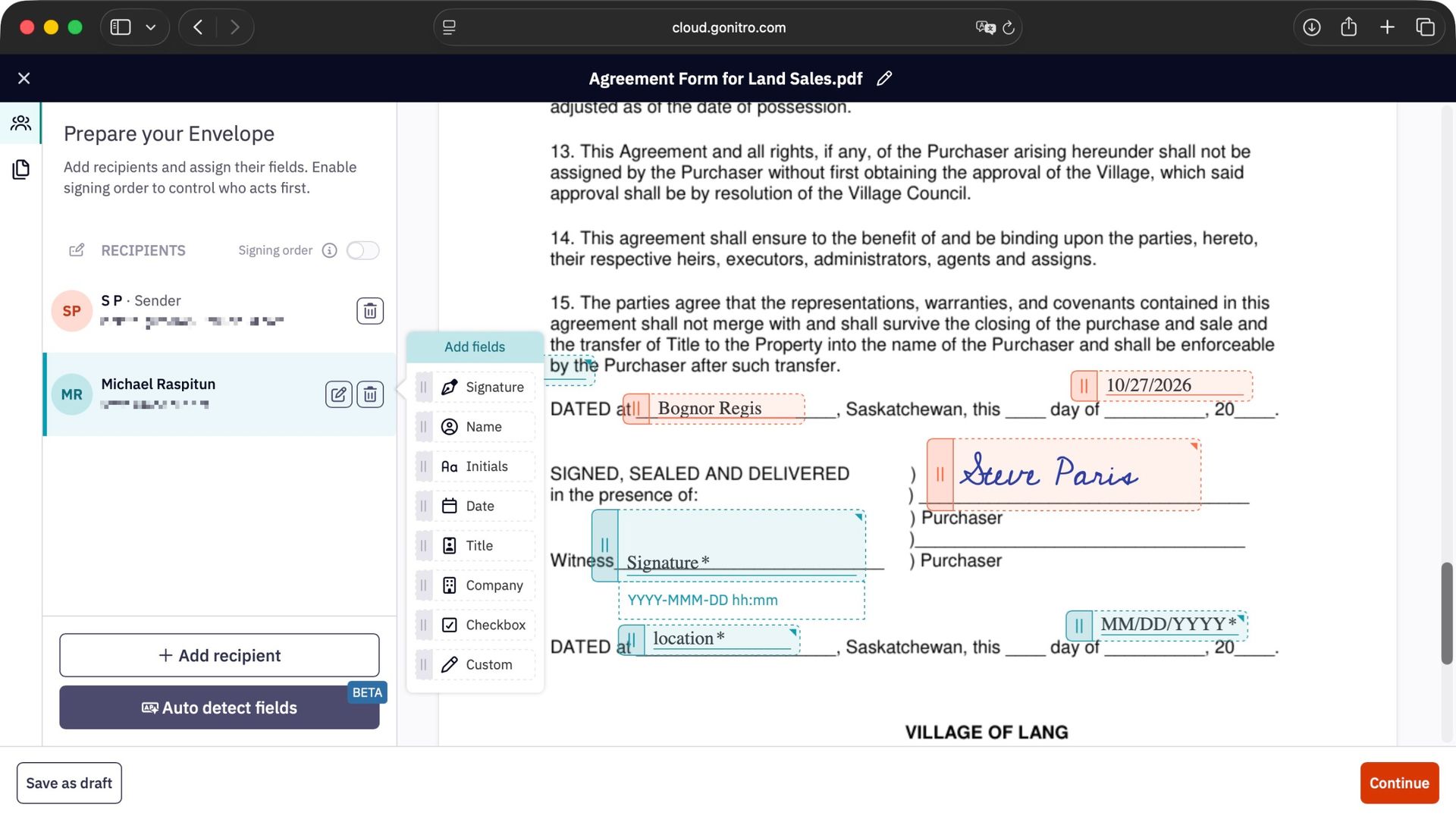
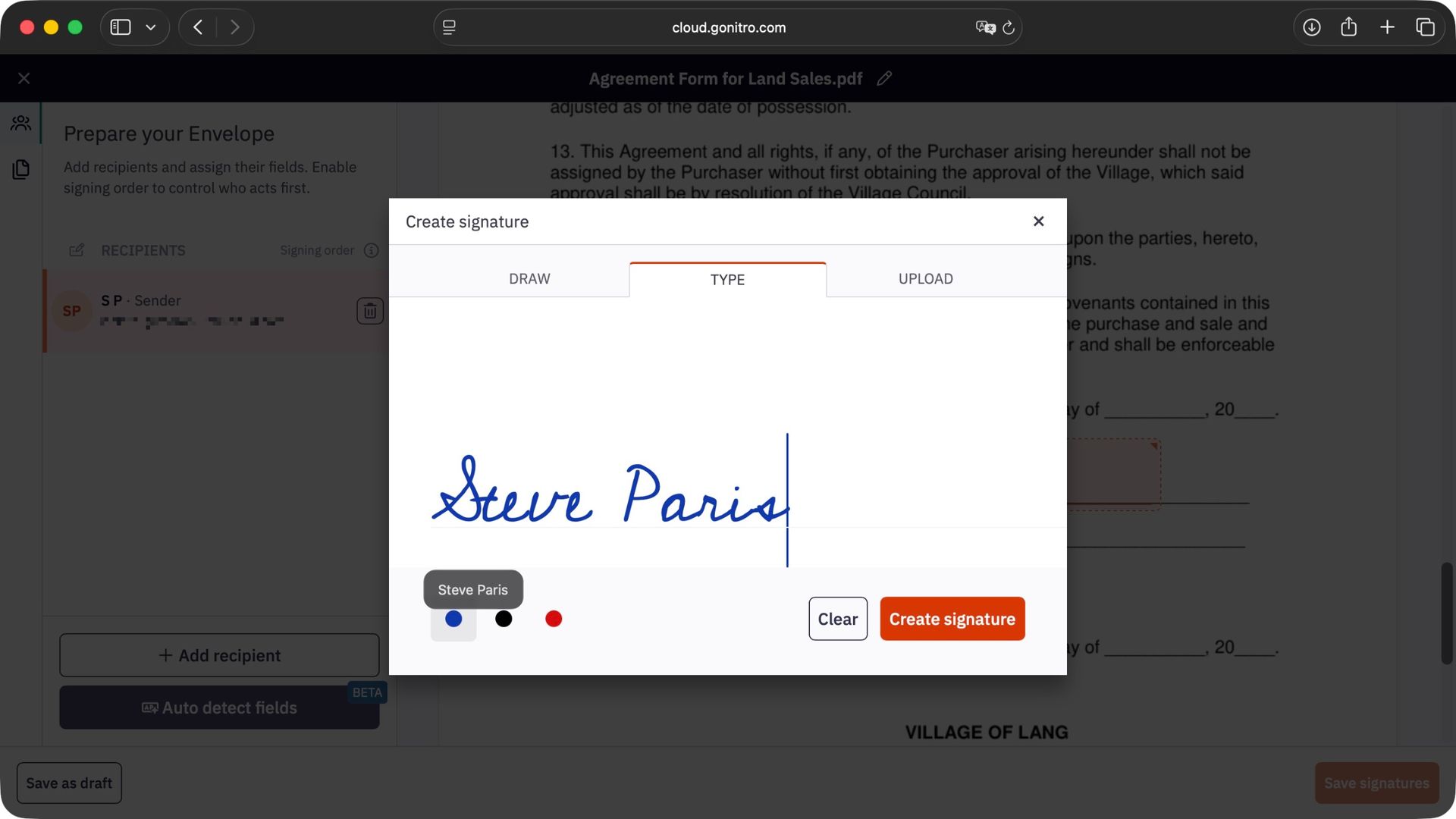
Despite this, the process is remarkably simple. You’re selected as the default recipient, and you get to drag specific fields onto the PDF document for you to fill in. There’s a button you can click on for the algorithm to detect existing fields, but it’s in beta, so if you want to be sure, just drag the relevant fields yourself.
When it comes to signing, you can draw using your trackpad or mouse (which didn’t work for me, even using different browsers), type in your name (Nitro uses a single script font for that, you don’t get a choice on that front), or you can upload a JPG, PNG or TIFF file bearing your signature.
Other fields include requests for the date, name, initials, checkboxes, even a custom field is available, enabling you to populate the form with all the information you require, including the option of making any or all of them compulsory.
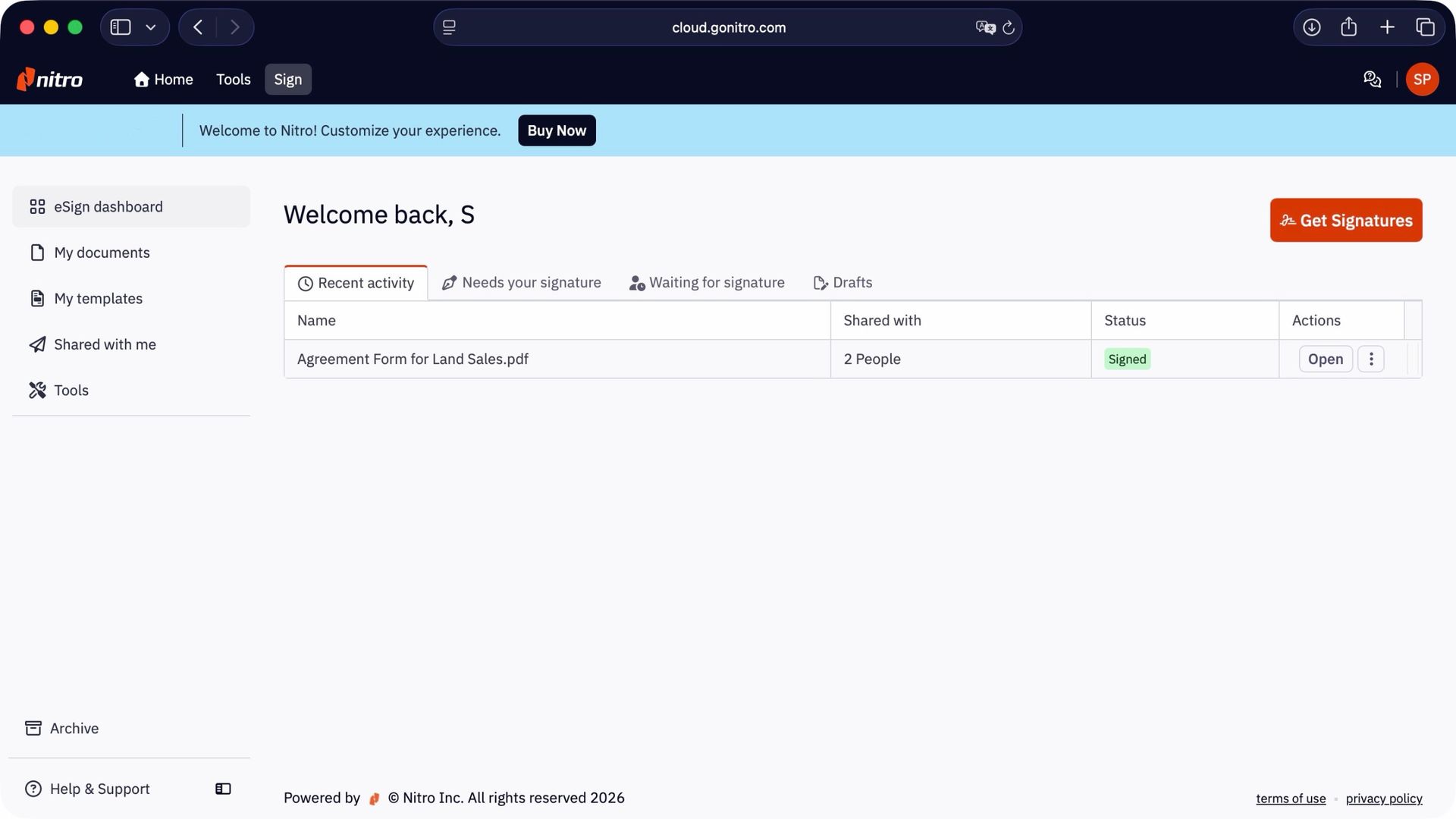
It’s also possible to set a signing order, so a recipient will only be informed they need to sign once another, or others, have already done their bit. Best of all, those recipients don’t even need to create an account to do so. Nitro handles everything and will contact you once the document is completed.
The entire process was incredibly simple and well handled, and once the ‘detect fields’ button is out of beta, it’ll be even more effortless.
- Signing: 4/5
Should I buy Nitro PDF?
Buy it if...
You need to access and sign a lot of PDFs, would benefit from converting these files into other documents, and appreciate a little computer help to summarise a document.
Don't buy it if...
You don’t need AI to do the work for you, can already convert documents into PDF and back again, would rather not have another subscription, and prefer to print documents to sign them anyway.
Alternatives

Adobe Acrobat Standard
The original remains, in our opinion, the top choice for best PDF editor out there. It's rich with features and tools for editing, converting, and organizing all your PDF documents. The workflow and user experience is sublime once you get past the initially overwhelming interface. In our review, we couldn't help but not that "sometimes, the best solution on the market has its reputation for a reason."View Deal

Foxit PDF Editor
"Manipulate PDFs in style with a great multi-platform PDF editor" was how we kicked off our review of Foxit's excellent PDF editor. It's packed full of powerful tools, including an outstanding data redaction tool. Ultimately, we found it to be "a great app for businesses who need to manipulate, edit, redact and otherwise alter PDFs on a regular basis."View Deal

EaseUS PDF Editor
EaseUS PDF Editor offers much of what Nitro does, although you have the choice of a perpetual license or taking out a subscription. When we tested the product, we found "a powerful, PC-only PDF editing software tool that allows you to manipulate and alter documents with relative ease. It also comes with more standard features, such as a converter, and has good OCR capabilities."View Deal
How I tested Nitro PDF
As this is mainly an online service, I checked it out on a couple of web browsers, namely, Firefox and Safari. All the tools worked great, aside from the drawing function for the signature which failed for both. Thankfully there were other ways to sign a document.
One of the good things of an online service is it’s not dependent on your computer’s specs, so you most definitely don’t need the latest and greatest to run Nitro PDF. In fact, I used a machine over 7 years old for this and it worked without a hitch.
Everything ran smoothly (aside form the drawing part) and I had no problem finding my way around.
For additional PDF editing software, we reviewed the best Adobe Acrobat alternatives and best free PDF editors.
from Latest from TechRadar https://bit.ly/48pZNP7
 Hello, my name is Jack Sparrow. I'm a 50 year old self-employed Pirate from the Caribbean.
No comments